Migrating Your TOTP Codes from Google Authenticator to KeePassXC
I finally got tired of my second factor living inside a Google app. So I moved all of it into KeePassXC, where the secrets sit in a file I own and encrypt myself.
It’s not a one-click migration, and there are a couple of sharp edges. Here’s the whole thing, including the mistakes, so you don’t repeat them.
Why this isn’t simple
When you tap Export accounts in Google Authenticator, it doesn’t hand you standard otpauth:// URIs. It generates QR codes in a proprietary format:
otpauth-migration://offline?data=CkAKCk...
That data blob is a base64-encoded Protocol Buffer holding all your accounts at once. KeePassXC (and most other apps) only understand the standard per-account otpauth://totp/... format. So the job is really: get the secrets out of Google’s migration blob and into the standard format.
Everything below runs locally on my machine. These are the literal keys to every account I have 2FA on, so nothing touches a website, a cloud clipboard, or anyone else’s machine.
Step 1: Export from Google Authenticator
In the app:
- Three-dot menu → Transfer accounts → Export accounts
- Authenticate, select the accounts, tap Export
You’ll get one or more QR codes. The app will tell you to “download Google Authenticator on your new device and scan this.” Ignore that. That’s just Google’s intended phone-to-phone flow.
We’re not scanning it with another Authenticator. We just need the text inside the QR.
⚠️ The gotcha: Google batches roughly 10 accounts per QR code. If you have more, the export is split across multiple codes with a small “1 of 2” indicator you swipe through. I captured the first one, decoded exactly 10 accounts, and only later realized I had more. Swipe through and capture every QR.
Step 2: Get the QR contents as text
Screenshot each QR code and move the images to your computer. Then decode them to text with zbar, appending every QR to the same file:
brew install zbar

zbarimg --raw qr1.png >> export.txt
zbarimg --raw qr2.png >> export.txt   # one append per QR code, same file
Each line in export.txt should now begin with otpauth-migration://offline?data=…. That’s the raw payload.
Step 3: Decode into standard otpauth:// URIs
The cleanest tool for this is scito/extract_otp_secrets. Run it in a throwaway, project-local environment with uv so nothing pollutes your system Python installation:
git clone https://github.com/scito/extract_otp_secrets.git
cd extract_otp_secrets

uv venv
uv pip install -r requirements.txt

uv run python src/extract_otp_secrets.py export.txt --urls otps.txt
zbar warnings
The zbar import warning is harmless here. You’ll see:
WARN: Cannot import pyzbar module... Unable to find zbar shared library
pyzbar is only needed when the tool reads QR images directly. Since I fed it already-decoded text, it never needs it. Ignore the warning.
The output flags require an argument. Running --urls with nothing after it errors out:
error: argument --urls/-u: expected one argument
Give it a filename, or - to print to stdout:
uv run python src/extract_otp_secrets.py export.txt --urls -
When it works, you get one line per account:
otpauth://totp/example%40gmail.com?secret=JBSWY3DPEHPK3PXP&issuer=Google
otpauth://totp/example%40site.com?secret=KRSXG5CTMVRXEZLU&issuer=Stripe
...
Exported 10 otps to otpauth url list file otps.txt
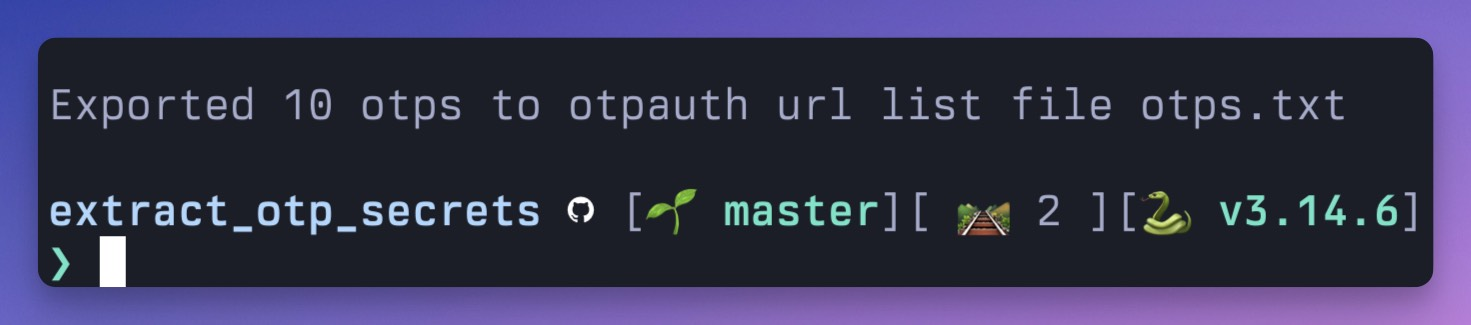
(Those secrets are fake; never publish or paste your real ones. More on that below.)
Step 4: Import into KeePassXC
There’s no clean bulk importer, but per-entry is fast. For each otpauth:// line:
- Open or create the entry for that account.
- Right-click the entry → TOTP → Set up TOTP.
- Paste the entire
otpauth://totp/…line into the Secret Key field.
KeePassXC parses the secret, digit count, period, and algorithm straight out of the URI, so you don’t need to touch the other settings. (If you prefer, you can instead add an Advanced attribute literally named otp with the full URI as its value; KeePassXC recognizes that too.)
Step 5: Verify before you delete anything
This is the step people skip and regret. For a few entries, especially the high-value ones, right-click → TOTP → Show TOTP and confirm the 6 digits match what your phone still shows for that account.
Keep Google Authenticator intact on your phone until every account is imported and verified. A TOTP secret you’ve locked yourself out of is a genuinely bad afternoon.
Step 6: Clean up the plaintext
Your export.txt and otps.txt are unencrypted secrets sitting on disk. Shred them, and remove the tooling if you’re done:
rm -P otps.txt export.txt   # -P overwrites before deleting
rm -rf .venv                # drop the local Python env

brew uninstall zbar
brew autoremove             # cleans up unused dependencies
Then empty your Trash, and delete the QR screenshots from both your Mac and your phone’s “Recently Deleted” album.
The security lesson worth more than the tutorial
Here’s the one that matters most: a TOTP secret is the entire second factor. If it leaks, that “factor” is worthless. So:
- Never paste these lines into a website, a chat tool, an LLM, or a pastebin.
- Never publish a screenshot of the decoded output. (Blur it, and the blur is sometimes recoverable, so just don’t.)
- Every code block in this post uses fabricated secrets for exactly that reason.
And if you do expose one (sent a screenshot somewhere, posted it by accident), the fix is cheap: go into that account’s security settings, remove the current authenticator, and re-enroll 2FA to generate a fresh secret. New QR, new secret, the leaked one becomes useless. It takes two minutes per account and it’s absolutely worth doing for anything financial.
One design decision before you commit
Your TOTP codes now live in the same KeePassXC database as your passwords. That means a single unlocked vault holds both factors at once, which somewhat defeats the point of having two.
That can be a deliberate, reasonable convenience trade. But if you want real separation, keep TOTP in a separate KeePassXC database with its own strong master password, and be careful about how (and whether) you sync it. Pick consciously rather than by accident.
That’s the whole migration. The friction is real but one-time, and the payoff is permanent: your second factor in a file you own, encrypted with a key only you hold, syncable however you like, with no walled garden required.